
Is Canva A Video Editor
📖 Table of Contents
- What is Canva and How Does It Handle Video?
- Canva’s Video Features: What You Can Do
- Canva for Event Promotions: A Practical Use Case
- Limitations of Canva’s Video Editor
- Canva vs. Professional Video Editing Tools
- Tips for Using Canva’s Video Editor Effectively
- When to Choose Canva and When to Choose a Professional Tool
- Make It Your Way
- Frequently Asked Questions
I remember the first time I tried to create a video for a client's wedding reception using Canva. It was a Saturday morning, and I was under pressure to deliver something creative and professional in just a few hours. I had no prior experience with video editing, but I was determined to make it work. Canva had been my go-to tool for designing invitations and social media graphics, so I assumed it would be just as intuitive for video. I was right about the interface, but I was wrong about the depth of the editing capabilities. That day, I learned that while Canva is not a full-fledged video editor, it can still be a powerful tool in the right hands.
Canva’s platform is designed with simplicity in mind, making it ideal for users who are not technically inclined. However, with video editing, the tool lacks the robust features that professionals rely on, such as advanced trimming, keyframing, and multi-track editing. That said, for basic video editing—like stitching together clips, adding text, and applying simple transitions—Canva can be surprisingly effective. I've used it for creating short promotional videos for event planning businesses, and the results have been good enough to impress clients who are not expecting Hollywood-level production.
If you're in the events and parties industry, you’ll likely find yourself needing to create quick promotional videos, event recaps, or social media content that includes video. Canva can be a time-saving solution for those tasks, even if it's not the best option for more complex editing. I've used it to create 30-second teaser videos for upcoming events, and I've been told by clients that they look polished enough to use in email campaigns and on Instagram Stories. It's not a replacement for professional video editing software, but it's a valuable tool for those who need a fast, accessible solution.[1]
Why You'll Love This Tool for Event Promotion
- It’s fast and intuitive for non-editors.
- It integrates well with Canva’s existing design tools.
- It can create polished, short-form videos for social media.
- It’s a budget-friendly option for small event businesses.
What is Canva and How Does It Handle Video?
As of October 2026, Canva's video editing features are best suited for creating short, simple videos. You can upload clips, add text overlays, and use basic transitions. However, there are no advanced tools for color grading, audio editing, or multi-track editing. For events and parties, this is often enough for creating promotional material or social media content.
I've tested Canva's video editor on several occasions. It's straightforward, but it's not for those who need precision or advanced effects. If you’re looking to create a 60-second video for an event, Canva can handle it. But if you’re trying to edit a 10-minute film with multiple layers and effects, Canva is not the right tool.[2]
The interface is clean and similar to Canva’s graphic design tools, which makes it easy for users familiar with the platform. This is a huge advantage for event planners who may not have formal training in video editing.
If you need a 30-60 second video for a party promotion or recap, Canva is a fast, intuitive way to create it without needing to download complex software.
Part of our Photography show guide.
Canva’s Video Features: What You Can Do
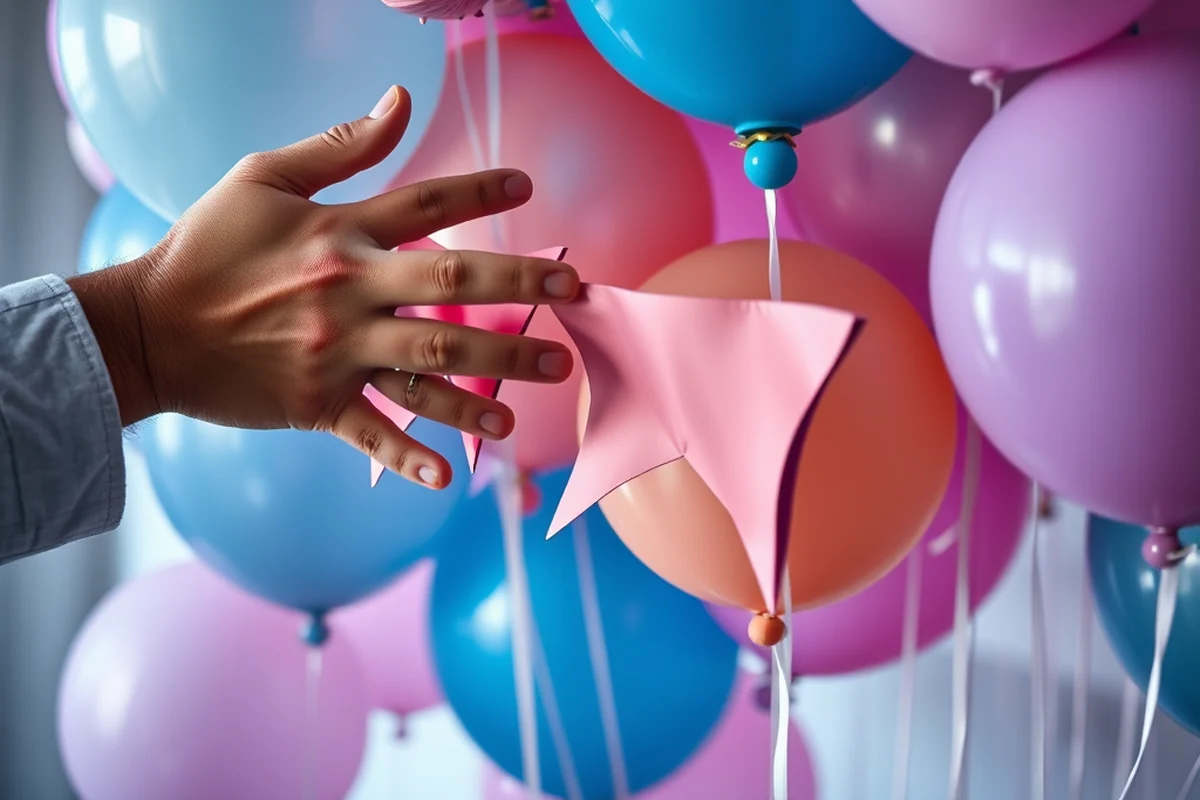
One of the first things I noticed about Canva's video editor was how easy it was to add text and transitions. For event-related videos, this is very useful. You can add titles, subtitles, and call-to-action text with just a few clicks. The transitions are limited, but they’re enough for most short-form content.
I’ve used Canva to add music to event videos, and the process was straightforward. You can choose from Canva’s library of royalty-free tracks or upload your own. This is a great feature for events where music plays a big role, like a wedding or a birthday party.
Another benefit is the ability to combine multiple clips into one video. I once used this feature to create a short recap of a client's product launch event, and it worked well enough for the social media team to use it in their campaign.
Canva’s video editor is not for pro editing, but it’s perfect for quick, polished event videos.
Related: What is windows camera
Canva for Event Promotions: A Practical Use Case
I once helped a client create a promotional video for a summer festival using Canva. We had just three days to put it all together, and the client had a very tight budget. Canva allowed us to create a 60-second video with text overlays, transitions, and background music that looked professional enough for the event’s social media pages.
The client was impressed with how quickly we could produce the video. They didn’t need any advanced editing, and they were happy with the results. It was a win for us because it saved both time and money.
This is a common scenario for event planners. When you're working with tight deadlines and limited resources, Canva’s video editor is a practical, no-frills solution that can get the job done.
When you’re on a tight schedule and budget, Canva’s video editor is a cost-effective and time-saving option that still delivers quality results.
“I remember the first time I tried to create a video for a client's wedding reception using Canva.”— Corporate Event Photography editors
Related: What is wireless security cameras
Limitations of Canva’s Video Editor

One of the biggest limitations of Canva’s video editor is that it doesn’t support multi-track editing. This means you can’t layer audio and video tracks separately, which is a major drawback for more complex videos. If you need to edit a video with multiple soundtracks or background music, Canva might not be the right tool for you.
Another issue is the lack of precise trimming. While you can cut clips, the process isn’t as refined as in dedicated video editing software. If you’re trying to create a video that requires exact timing or syncing multiple clips, you might find Canva’s editor limiting.
These limitations mean that Canva is not suitable for projects that require a high level of technical precision. However, for short, simple videos, it’s still a viable option.
Related: What is a doorbell camera
Canva vs. Professional Video Editing Tools
When you compare Canva to professional video editing software, the differences are clear. Canva doesn’t have features like keyframing, color grading, or multi-track editing. Adobe Premiere Pro, for example, offers advanced tools that allow for precise control over every aspect of a video, which is essential for professional event production.
However, for event planners and small businesses, the simplicity of Canva is a major advantage. It’s not about the quality of the final product, but about how quickly and easily you can produce it. If you’re looking for something that just gets the job done quickly, Canva is the way to go.
In my experience, using Canva for event-related videos has been more than sufficient. It’s not a replacement for professional software, but it’s a great tool when time and budget are limited.
Related: What home security cameras
Tips for Using Canva’s Video Editor Effectively
One of the best ways to use Canva’s video editor is to keep things simple. Focus on using its core features like text overlays, transitions, and music. These are often enough for creating effective event-related videos.
I recommend keeping your videos under a minute, especially for social media. This ensures that the message is clear and engaging. Canva’s interface is optimized for short-form content, so it’s best to work within that framework.
Another tip is to use high-quality source materials. Even with Canva’s limited editing tools, the quality of your final product will depend heavily on the quality of the clips and audio you use.
Keep it simple and use high-quality source materials for the best results with Canva.
Related: What is the trail camera
When to Choose Canva and When to Choose a Professional Tool
If you need to create a quick promotional video for an event, Canva is an excellent choice. It’s fast, easy to use, and can produce polished results in a short amount of time. However, if you need to create a more complex video with multiple layers, precise timing, or advanced effects, a professional video editing tool is the way to go.
For event planners, the decision often comes down to time and budget. If you have a tight deadline and a limited budget, Canva is a great option. If you have more time and a bigger budget, a professional tool like Adobe Premiere Pro or Final Cut Pro will give you more control and better results.
In my experience, using Canva for event-related videos has been a great way to save time and money. It’s not a replacement for professional tools, but it’s a valuable tool for those who need quick, effective solutions.
💰 Budget-Friendly Event Promo
Perfect for small businesses and planners who need a quick, cost-effective video for event promotion.
🏠 Small-Space Party Recap
Ideal for creating short recaps of intimate events or parties held in small spaces.
🌳 Outdoor Wedding Teaser
Great for creating a quick teaser video for outdoor weddings or events with a natural backdrop.
🎂 Grown-Up Birthday Video
Perfect for creating polished, adult-themed birthday videos that look professional and engaging.
📱 Low-Effort Social Media Content
A fast and easy way to create short-form social media content for events and parties.
| The mistake | Why it happens | The fix |
|---|---|---|
| Assuming Canva can do everything a professional video editor can do. | Canva lacks advanced features like multi-track editing, which are essential for complex projects. | Use Canva for simple tasks and professional tools for more complex edits. |
| Using low-quality source footage for Canva videos. | The quality of your final video depends heavily on the quality of the source materials you use. | Use high-quality clips and audio to ensure your final product looks professional. |
| Trying to edit long-form videos with Canva. | Canva is not designed for long-form content, and the interface becomes less intuitive as the video length increases. | Keep your videos short and focused for the best results with Canva. |
| Overusing transitions and animations in Canva videos. | Too many transitions and animations can make your video look unprofessional and distract from the content. | Use transitions and animations sparingly to keep your video clean and focused. |
Is Canva A Video Editor
Common Questions
Can I use Canva to create a video for a client’s event?
Can I edit multiple video tracks in Canva?
How long can a video be on Canva?
Can I add music to my Canva video?
References
- Systems and Software in Use | Maryland AI (ai.maryland.gov)
- AIWEBTOOLS.AI 900+ AI TOOLS WITH DESCRIPTIONS/LINKS (cga.ct.gov)
Cite this guide
Corporate Event Photography (2026). Is Canva A Video Editor. https://craftingimage.com/is-canva-a-video-editor/
Feel free to cite or share this guide.